
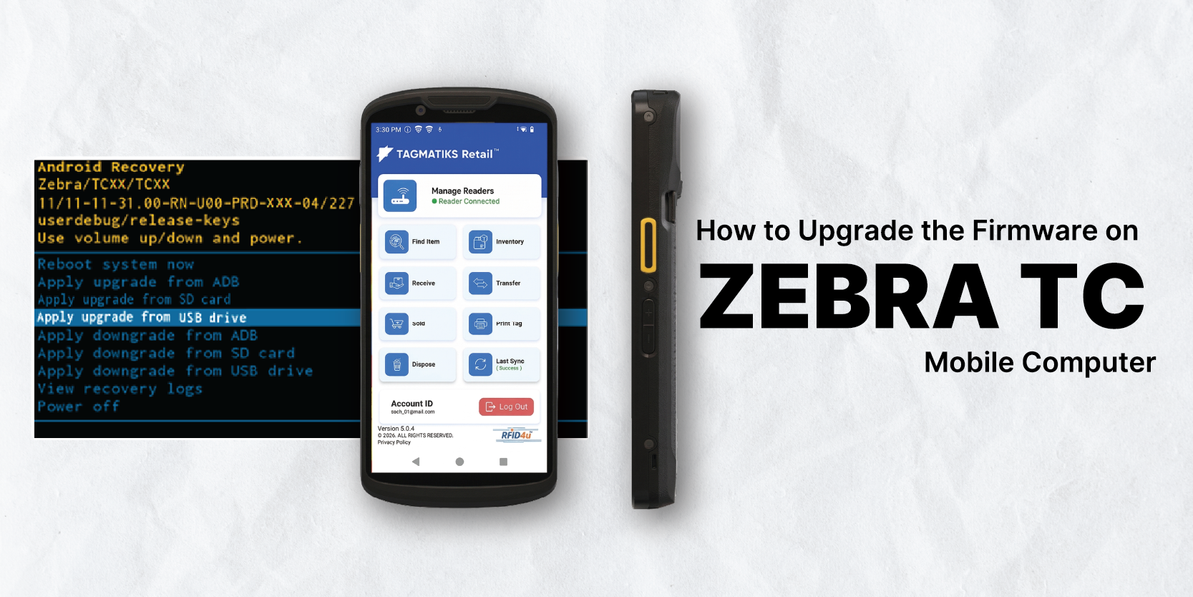
Upgrade Firmware on Zebra TC Mobile Computer
This guide explains how to update your Zebra device using external storage (USB/SD card) or a computer (ADB).
Before You Begin updating your firmware
- Ensure your device has at least 30% battery.
- Download the correct update file (.zip) from the Zebra support website.
- Note: In Recovery Mode, only Full OTA packages are supported. Delta (patch) packages are not compatible.
Section 1: Update via USB Drive or SD Card
Best for updating a single device quickly without a mobile computer.
Step 1: Prepare the Storage
Copy the update file (.zip) to the root directory (main folder) of your USB drive or SD card using your computer.
Step 2: Insert Media
Safely eject the storage from your computer and insert it into your Zebra device.
Step 3: Enter Recovery Mode
Restart the device for recovery.
For Zebra TC series mobile computers, the key combination to perform actions like entering recovery mode or initiating a factory reset can vary depending on the exact model. On many TC devices, the Volume Up + PTT (Push-to-Talk) button combination is commonly used, but it’s not universal.
If that doesn’t work on your unit, the correct procedure will be outlined in the device’s user guide or technical manual. Zebra publishes detailed documentation for each TC model (such as TC21, TC26, TC52, TC57, etc.), and the steps can differ slightly between them.
Recommendation:
- Check the specific model number of your TC device (usually printed on the label under the battery or in the system settings).
- Refer to the official Zebra support site or the included manual for that model.
- Follow the documented key combination for entering recovery or performing resets.
Step 4: Navigate the Menu
Use the volume buttons to highlight:
- Apply the update from the SD card
- Apply the update from the USB drive
Step 5: Select & Install
Press the Power button to select.
Locate your update file and select it again to begin installation.
Step 6: Finish
Once installation completes, select "Reboot system now" and press the power button.
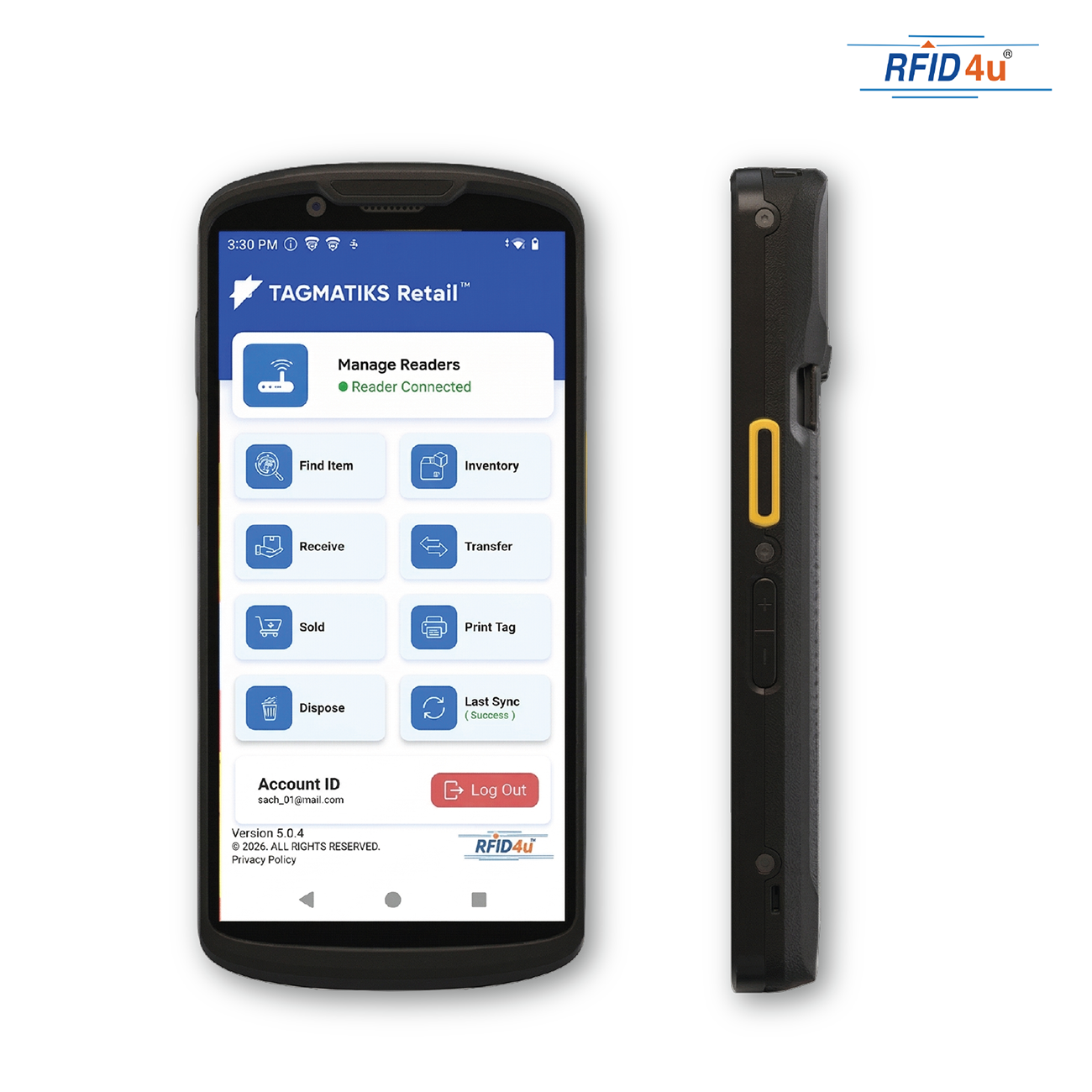
Section 2: Update via Mobile Computer (ADB)
Best for updating multiple devices or when using a PC.
Step 1: Prepare Tools and Files
- Download and install the latest ADB tools (SDK Platform-Tools for Windows).
- Download the OS update file (.zip) to your computer.
- Ensure the Zebra device has at least 30% battery.
Step 2: Enable Developer Mode & USB Debugging
- On the Zebra device, go to Settings > About phone (or About device).
- Tap the build number seven times until you see "You are now a developer!”
- Go back to Settings > Developer options and enable USB debugging.
- Tap OK if prompted.
Step 3: Connect the device to the computer
- Use a compatible USB cable to connect the Zebra device to your PC.
- When prompted “Allow USB debugging?" tap OK.
Step 4: Verify Connection & Enter Recovery Mode
On your PC, open the folder containing ADB tools and run adb.exe.
Open Command Prompt in the folder where ADB tools are installed, then type:
adb devices
(This lists connected devices.)
Then type:
adb reboot recovery
(The device will reboot into System Recovery.)
Step 5: Apply Update via ADB
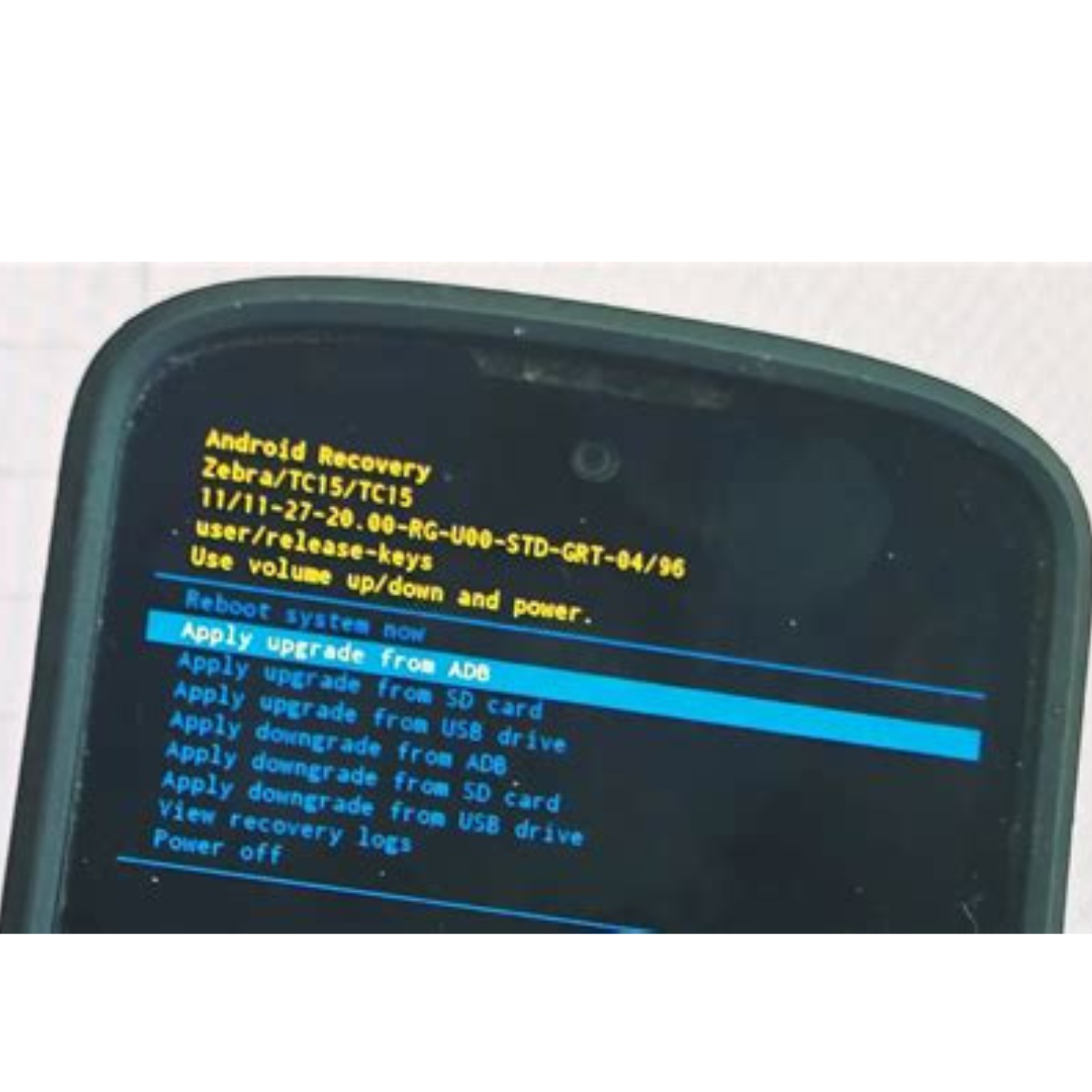
On the device, use the volume buttons to select Apply update from ADB.
Press the Power button to confirm.
On your PC, type:
adb sideload <File path>
Example:
adb sideload C:\Updates\zebra_os_update.zip
Press Enter. The update will begin and progress will be shown on both the PC and the device.
Step 6: Reboot Device
Once the update is complete, use the Volume buttons to select the Reboot system now.
Press the Power button to restart the device.
Recent Posts
-
Comprehensive Comparison of RFID Metal Mount Tags
RFID Metal Mount Tags are engineered to function reliably on metallic surfaces, where standard RFID …Sep 14th 2026 -
RFID Read Range Dropping? 5 Factors & Settings to Fix It
Introduction RFID technology is the backbone of modern retail and business operations. From tracking …Sep 7th 2026 -
Comprehensive Guide to Troubleshooting RFID Handheld Readers
RFID handheld readers are critical tools for inventory management, asset tracking, and logistics. Wh …Aug 19th 2026