
Comprehensive Guide to Troubleshooting RFID Handheld Readers
RFID handheld readers are critical tools for inventory management, asset tracking, and logistics. When they malfunction, operations can stall. Troubleshooting requires a structured approach: isolate the problem, test systematically, and apply corrective measures.
Core Troubleshooting Areas
1. Power and Battery Management
Power issues are the most frequent cause of downtime in mobile RFID deployments. Batteries degrade over time, and poor charging habits can accelerate this process.
- Symptoms: The RFID reader refuses to power on, experiences sudden and unexpected shutdowns during scanning operations, or drains its battery at an unusually rapid pace despite a full charge.
- Checks: Begin by physically inspecting the battery for any signs of physical degradation, such as swelling, which is a serious safety hazard and a sign of chemical breakdown. Monitor the device for excessive heat generation during use or charging. Verify the physical integrity of your charging cables, wall adapters, and docking stations, looking for frayed wires or bent pins. Finally, swap the battery with a known-good, fully charged spare to determine if the issue is with the battery or the reader's internal power management system.
- Fixes: Immediately replace any aging, swollen, or rapidly depleting batteries with brand-new, manufacturer-approved units. Use only Original Equipment Manufacturer (OEM) chargers, as aftermarket chargers often fail to deliver the precise voltage and amperage required, leading to incomplete charging or battery damage. To maximize daily runtime, configure the device's software to utilize power-saving modes, such as automatically dimming the screen or disabling the RF antenna during idle periods.
2. Tag Detection and Readability Problems
An RFID handheld reader is only as useful as its ability to accurately and consistently detect tags. Read failures are often a mix of physical positioning and environmental factors.
- Symptoms: The reader completely fails to detect nearby tags, reads them inconsistently (skipping tags in a batch), or requires the operator to be uncomfortably close to the asset.
- Checks: First, confirm that the operating frequency of your RFID tags perfectly matches the reader's capabilities (e.g., scanning UHF tags with a UHF reader, not an HF or LF device). Inspect the physical orientation of the reader's antenna relative to the tags; RFID signals have specific polarization (linear or circular) that dictates how the device should be pointed. Test the reader using a controlled "known-good" tag that has been verified to work perfectly in ideal conditions.
- Fixes: Educate operators on how to adjust their scanning angle and distance to optimize antenna polarization and hit the tag's physical. Identify and mitigate environmental interference by moving the scanning operation away from large metal surfaces (which reflect RF signals) or dense liquids (which absorb RF signals). If a specific asset consistently fails to scan, the tag's internal IC or antenna may be fractured and must be physically replaced.
3. Connectivity and Synchronization Failures
Modern RFID readers rely on continuous or batch data synchronization with host systems via Bluetooth, Wi-Fi, or cellular networks.
- Symptoms: The reader drops its connection to the host tablet or computer, Wi-Fi connections frequently time out, or the Bluetooth pairing process continuously fails.
- Checks: Verify that the pairing profiles and network credentials (SSID, passwords, IP configurations) are correctly entered in the device settings. Move the device to an entirely different physical environment to rule out localized signal jamming or bandwidth congestion. Check the reader's current firmware and network driver versions against the manufacturer's latest release notes.
- Fixes: Perform a comprehensive update of the device's firmware and communication software to patch known bugs. If connections remain unstable, navigate to the device settings and perform a complete reset of the network settings to clear out corrupted cache data. Ensure that operators are keeping the device within the recommended physical range of the access point or host device (typically 6 to 10 meters for a clear line-of-sight Bluetooth connection).
4. Software, Firmware, and Application Errors
RFID software bloat, corrupted files, and outdated operating systems can severely bottleneck an otherwise healthy hardware device.
- Symptoms: The RFID application sometimes freezes during high-volume scans, the operating system crashes and reboots unexpectedly, or the overall interface responds sluggishly to user inputs.
- Checks: Access the device's developer or administrative settings to review the system error logs for specific crash codes. Monitor the device's active memory (RAM) and CPU usage to see if a background application is monopolizing system resources. Verify that the current version of your custom or third-party RFID application is explicitly compatible with the device's underlying OS version (e.g., Android 11 vs Android 13).
- Fixes: Routinely clear the application cache and delete temporary background files to free up processing power. If an application is continually crashing, perform a clean uninstallation followed by a fresh installation from a verified source.
5. Physical Damage and Hardware Integrity
Industrial environments are unforgiving. Drops, impacts, and exposure to the elements can compromise internal components.
- Symptoms: The external plastic casing is visibly cracked, the touchscreen is shattered or unresponsive, physical trigger buttons stick, or the charging ports feel loose and wobbly.
- Checks: Conduct a thorough visual and tactile inspection of the entire outer housing, looking for hairline fractures where moisture or dust could enter. Test the mechanical resistance and responsiveness of all physical buttons, triggers, and keypads. Shine a flashlight into the data and charging ports to check for bent connector pins or compacted debris.
- Fixes: Send devices with compromised housings to an authorized repair center to replace the damaged plastics and restore their environmental seals. Mandate the use of heavy-duty, shock-absorbing rugged cases and tempered glass screen protectors for all fieldwork. If the internal antenna connections or motherboard are severely damaged from a drop, contact the manufacturer to arrange for a warranty replacement or professional repair.
- RFID Configuration and Settings Mismatches
Even with flawless hardware, fully charged batteries, and perfect environmental conditions, proper software configurations can completely derail scanning operations. If the reader's RF settings do not align precisely with your specific business use case, the system will behave erratically, capturing either too much useless data or entirely missing critical assets.
- Symptoms: The reader captures tags from adjacent rooms or floors (stray reads), completely ignores specific tags that are right in front of it, reads moving tags too slowly on a conveyor belt, or repeatedly scans the same handful of tags while failing to detect the rest of a large pallet.
- Checks:
- Power Levels: Evaluate the reader’s transmit power (usually measured in dBm). Determine if the power is set too high for a close-range application (causing bleed-over) or too low for a long-range portal.
- Session and Target States: Inspect the EPC Gen2 Session (S0, S1, S2, or S3) and Target (A or B) settings. If scanning a highly dense pallet, check if tags are reverting to their original "unread" state too quickly, causing the reader to get stuck in an endless loop of reading the loudest tags.
- Link Profiles: Review the selected RF link profile (data rate and modulation). Check if you are using a slow, high-interference profile in a clean environment, or a fast, easily disrupted profile in a noisy warehouse.
- Data and RSSI Filters: Check if any software-level filters are active. Are there EPC prefix filters unintentionally blocking new tag batches? Is the RSSI (Received Signal Strength Indicator) threshold set so aggressively that it ignores valid but slightly weaker tag signals?
Fixes:
- Calibrate Power Levels: Dynamically adjust the transmit power to match the physical boundaries of your task. Dial the power down significantly for point-of-sale or specific bin counting, and maximize it only for wide-area dock door portals.
- Optimize Sessions: Match the session setting to the workflow. Use Session 0 or 1 for fast, single-pass reads where tags don't need to stay "quiet" for long. Use Session 2 or 3 for massive inventory counts, ensuring that once a tag is read, it stays quiet for a prolonged period, allowing the reader's anti-collision algorithms to find the remaining hidden tags.
- Match the Link Profile: Select Dense Reader Mode (DRM) profiles if multiple RFID readers are operating in the same facility to prevent reader-to-reader collision. Conversely, switch to high-speed profiles if tracking fast-moving items on a conveyor where interference is low but time is critical.
Advanced Troubleshooting
Signal Interference
- Cause: The presence of nearby electronics transmitting on similar frequencies, environments with an overly dense concentration of tags (causing tag collision), or facilities with highly reflective surfaces like chain-link fences and metal shelving.
- Solution: Relocate the scanning process to a more isolated area to see if read rates improve. Utilize physical RF shielding materials around the scanning zone to block outside noise, and use the reader's software to lower the antenna's transmit power—sometimes a weaker, more concentrated signal reduces bounce and improves accuracy in metal-heavy rooms. Filter your software settings to reduce tag density processing in overlapping scanning zones.
Environmental Factors
- Cause: Infiltration of fine particulate dust, high ambient humidity causing internal condensation, or operating the device in extreme temperatures (freezing warehouses or direct summer sunlight) that push the hardware beyond its thermal limits.
- Solution: Only procure devices that carry a strict IP rating (Ingress Protection, such as IP65 or IP67) appropriate for your specific warehouse or field conditions. Institute a strict cleaning protocol using compressed air and isopropyl alcohol to clear ports of grime. Implement operational limits to ensure devices are not left baking in hot vehicles or subjected to rapid temperature swings that cause internal moisture buildup.
Tag Compatibility
- Cause: A mismatch in communication protocols (for example, attempting to read proprietary tags with a reader set strictly to the EPCglobal Gen2 / ISO 18000-6C standard) or dealing with batches of tags that were improperly encoded or physically damaged during manufacturing.
- Solution: Audit your entire tag inventory to ensure strict adherence to standardized protocols that the reader's firmware supports. Isolate and permanently discard any defective or "dead" tags to prevent them from causing future confusion. Always conduct a pilot test with tags explicitly recommended or manufactured by the reader's hardware vendor to guarantee seamless interoperability.
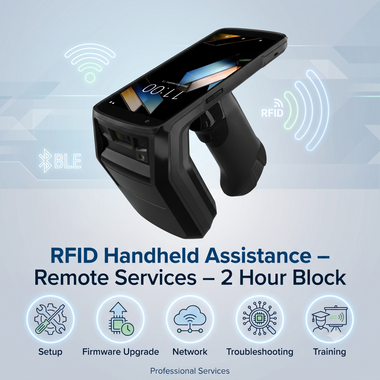
RFID Handheld Assistance Remote Services from RFID4U
Whether you're deploying your first RFID handheld (especially a Zebra handheld reader) or need help troubleshooting an existing installation, RFID4U's Remote Handheld Assistance service gives you direct access to our RFID specialists. During this dedicated two-hour remote support session, our engineers will work with you to configure your Zebra RFID handheld, optimize performance, troubleshoot issues, and provide hands-on guidance tailored to your application.
This service is ideal for customers who need expert assistance to get their RFID hardware operational quickly, without the expense of an on-site visit. Sessions are conducted remotely using a screen-sharing platform and may be scheduled in 30-minute increments within the purchased two-hour block.
What's Included
- Up to 2 hours of remote technical assistance
- Support scheduled in 30-minute increments
- RFID handheld initial setup and configuration
- Firmware verification and upgrade assistance
- RFID reader configuration and optimization
- Wireless and network connectivity assistance
- RFID application installation and configuration
- RFID performance tuning (power levels, singulation, trigger modes, etc.)
- Reader troubleshooting and diagnostics
- Guidance on RFID best practices
- Basic user training and Q&A during the session
Troubleshooting Flowchart (Step-by-Step)
- Phase 1: The Power Check. Assess if the device turns on and holds a charge. Test the battery and charger. Replace the battery immediately if it fails to hold a charge or shows physical defects.
- Phase 2: The Tag Test. If the device is powered but not reading, introduce a verified known-good tag. Adjust the antenna orientation and proximity. If it reads the test tag perfectly, the issue lies with your field tags or environment.
- Phase 3: The Connectivity Test. If the device reads tags but cannot transmit data, check the Bluetooth and Wi-Fi statuses. Restart the connections, verify host pairings, and apply any pending network firmware updates.
- Phase 4: The Software Check. If the connection is solid but the system is sluggish or crashing, dive into the system logs. Clear the system cache, force-stop background apps, and reinstall the RFID application.
- Phase 5: The Physical Inspection. If all digital and internal systems are failing inexplicably, physically inspect the hardware. Look for compromised ports and cracked or broken triggers that require professional repair or total replacement.
Recent Posts
-

Comprehensive Comparison of RFID Metal Mount Tags
RFID Metal Mount Tags are engineered to function reliably on metallic surfaces, where standard RFID …Sep 14th 2026 -

RFID Read Range Dropping? 5 Factors & Settings to Fix It
Introduction RFID technology is the backbone of modern retail and business operations. From tracking …Sep 7th 2026 -

Comprehensive Guide to Troubleshooting RFID Handheld Readers
RFID handheld readers are critical tools for inventory management, asset tracking, and logistics. Wh …Aug 19th 2026