

Basics of Setting Up Your Zebra RFD8500 Reader
This blog post explains the basics of setting up and connecting to your Zebra RFD8500 UHF RFID Handheld Sled Reader.
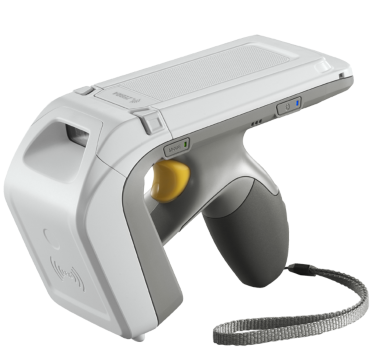
Fig 01: Zebra RFD8500 with RFID and 2D Imager
Turning on the Reader
- Press the Power Button to turn the RFD8500 ON.
- Hold the Power Button for three seconds to turn the RFD8500 OFF.
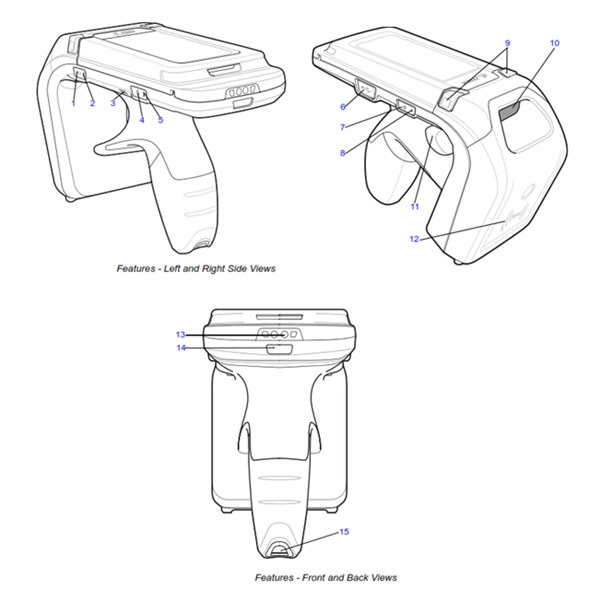
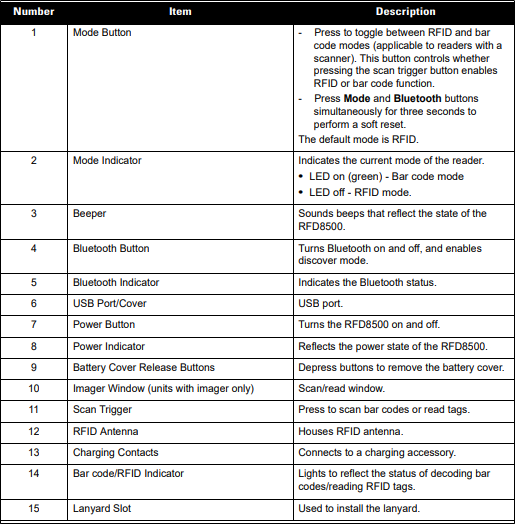
Fig 02: RFD8500 Features
Pairing the RFD8500 to a Device Using Bluetooth
The RFD8500 reader provides Radio Frequency Identification (RFID) with optional 2D barcode scanning functionality. The device can be used as a stand-alone unit or paired with a Bluetooth wireless technology enabled host device (such as a laptop, mobile computer, or smartphone).
Prior to using your TagMatiks RFID application software, please connect the RFD8500 to your Windows computer by navigating to the Settings/Bluetooth page on your PC through the following steps:
Start Menu > Settings > Devices > Bluetooth & other devices
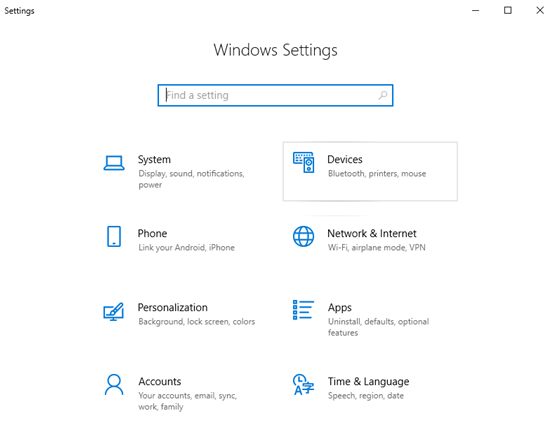
Fig 03: Windows Settings
To Add Your RFD8500 Bluetooth Reader
- Turn on your RFD8500 to make it discoverable.
- Turn on Bluetooth on your PC if it's not on already. To do this, select the Start button, then select Settings > Devices > Bluetooth & other devices, and turn on Bluetooth.
- Select Add Bluetooth or other devices > Bluetooth, as shown below in Fig 04.
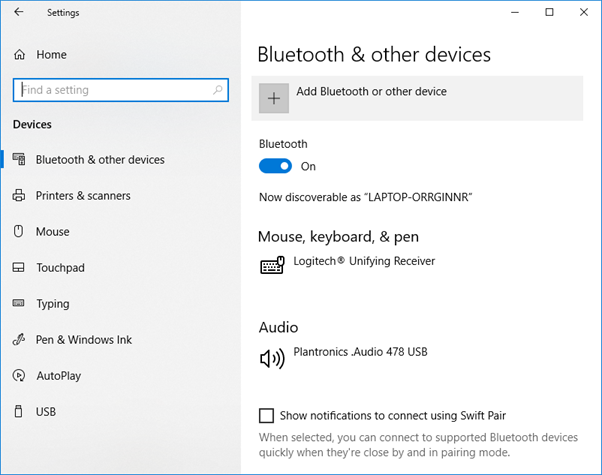
Fig 04. Windows® 10 Bluetooth & other devices
- Add Device > Bluetooth.
- Discover available RFD8500.
- Tap on the RFD8500XXXXXXXXXX, as shown below in Fig 05.
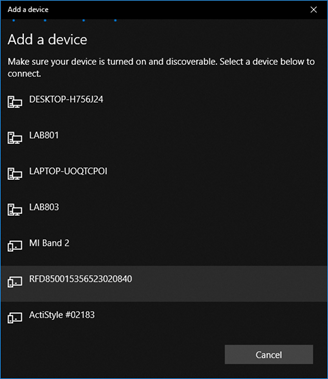
Fig 05: Windows 10 Add a device window
- Press the RFD8500 trigger to pair. The Bluetooth LED will start blinking quickly.
- A message will display on the screen indicating the device is successfully paired,, as shown below in Fig 06.
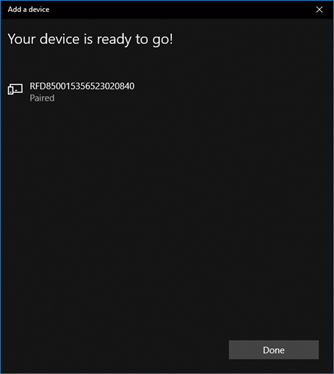
Fig 06: Windows 10 Reader Paired
Resetting the Zebra RFD8500
To soft reset the RFD8500:
- Hold the Mode / Function and Bluetooth buttons simultaneously for three seconds, then release to initiate the reset process.
To reset the device to factory default:
- Hold the Power and Bluetooth buttons simultaneously for five seconds, then release to initiate the factory reset process.
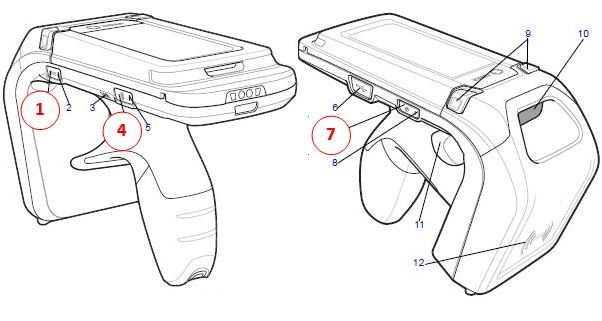
| Number | Button |
| 1 | Mode / Function |
| 4 | Bluetooth |
| 7 | Power |
Fig 07: To reset the RFD8500 back to factory defaults
Recent Posts
-

How RFID Handheld Readers Can Be Used with GPS for Asset Location Tracking
Asset tracking has become a critical challenge across industries such as logistics, warehousing, hea …Feb 26th 2026 -
How to Choose the Best RFID Printer: A Complete Buyer's Guide
1. What is an RFID Printer (and Why Do You Need One)? An RFID (Radio Frequency Identification) print …Feb 17th 2026 -
Zebra RFD40-M Premium Plus UHF RFID Sled
The Zebra RFD40M Premium Plus UHF RFID Sled is a modular, high-performance RFID reader that attaches …Feb 9th 2026